

Who can verify content
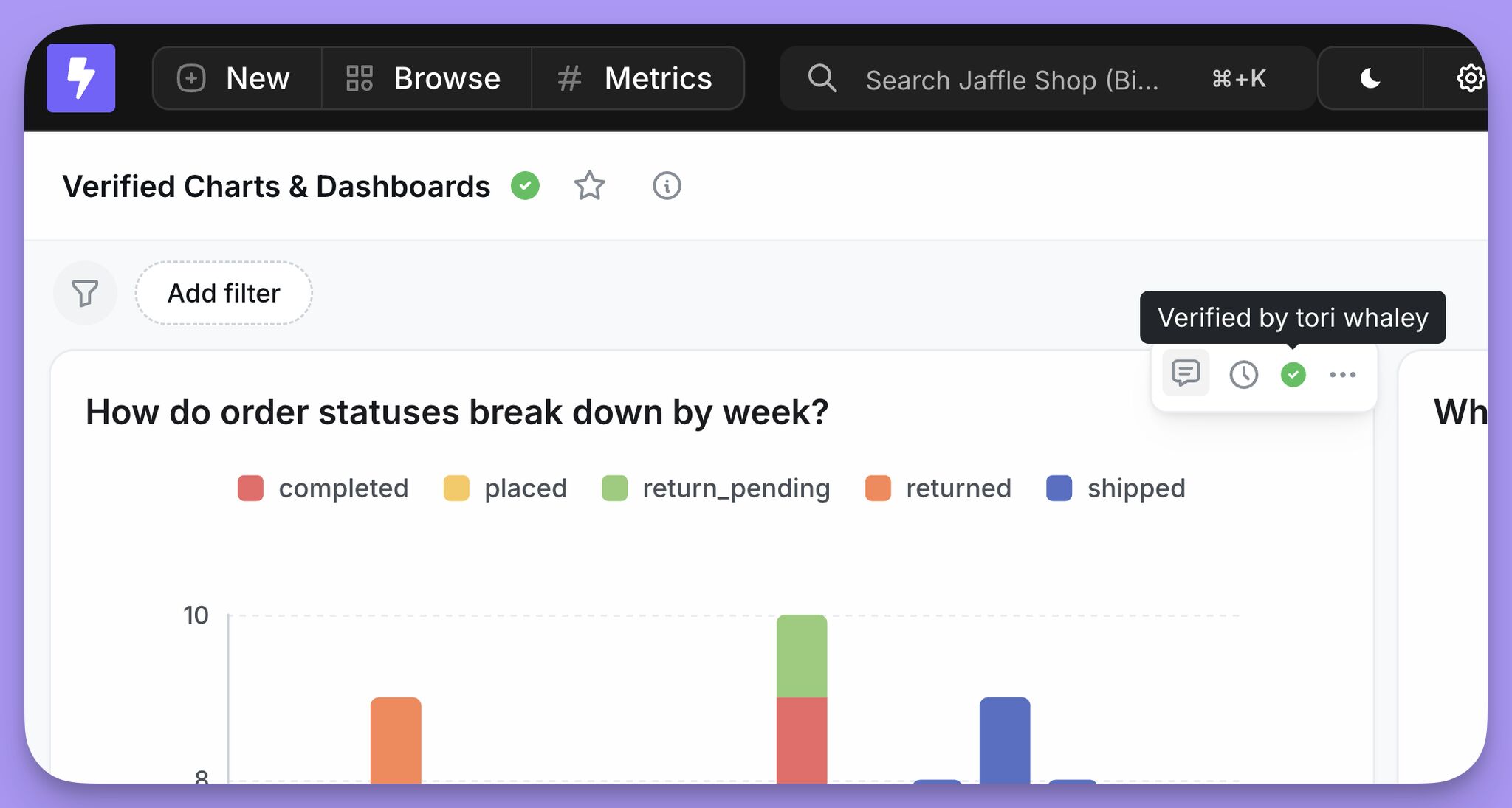
Organization and project admins and developers can verify or unverify charts and dashboards. Users on other built-in roles (editors, interactive viewers, viewers, members) can see which content is verified, but cannot change verification status themselves. If you use custom roles, grant the Manage content verification (manage:ContentVerification) scope to any role that should be able to verify or unverify content.
Verifying a chart or dashboard
Admins can verify content directly from the chart or dashboard, or from the verification panel in project settings. Admins also have a dedicated verification panel under Project settings that lists all verified content and provides a central place to manage verification across the project.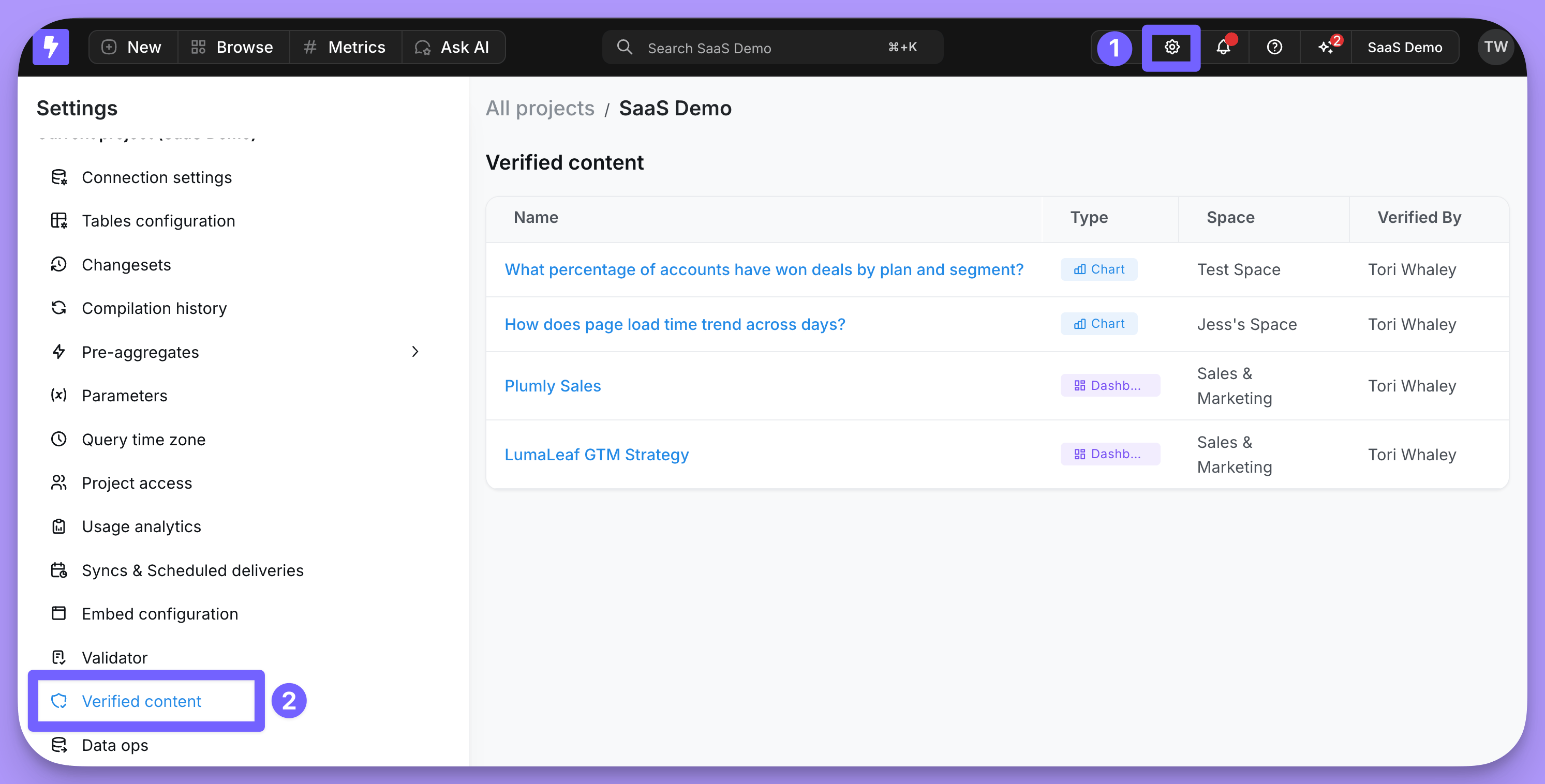
Where users see verified content
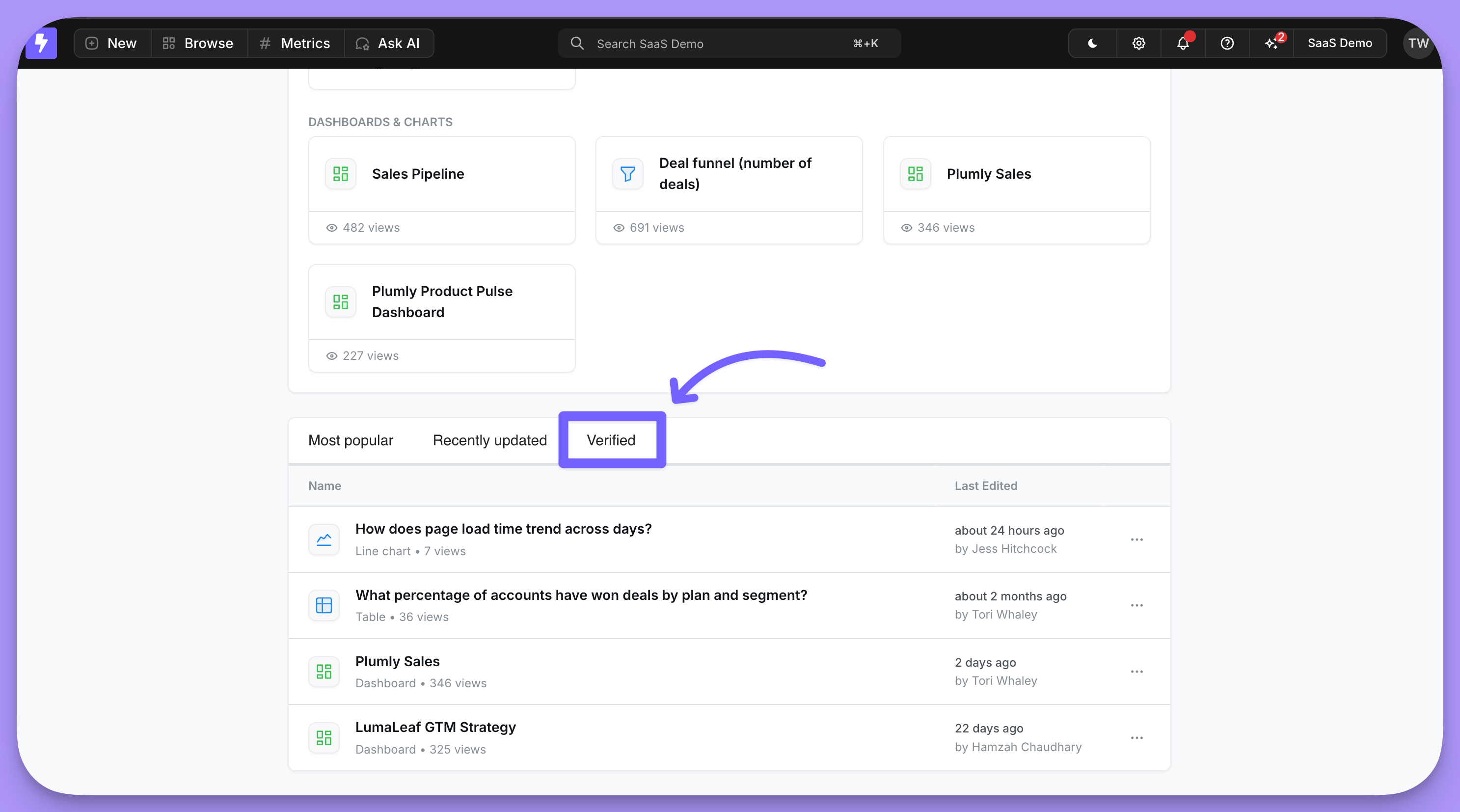
Once a chart or dashboard is verified, the green checkmark badge appears wherever that content is surfaced, including:- The homepage, so users can quickly spot approved content to start from
- Chart and dashboard listings
- Inside the chart or dashboard itself, along with the verifier’s name and verification timestamp
AI agents prefer verified content
When an AI agent searches your project for existing charts and dashboards to reference, admin-verified content is ranked first. If a verified chart or dashboard matches the user’s question, the agent surfaces it ahead of unverified results and tells the user it’s verified, including who verified it and when. This applies to:- The agent’s content search, used when a question can be answered by an existing chart or dashboard
- The agent’s dashboard chart previews, where verified charts inside a dashboard are shown first
This is separate from verified answers, where users mark answers an AI agent produced as good examples. Both signals are used by the agent today and will be unified in a single trusted-content stream in a future release.
Verification is automatically removed when someone else edits the content
Verification is tied to the exact state of the content at the time it was verified. If someone without verify permission edits a verified chart or dashboard, the verification badge is automatically removed and someone with verify permission will need to review the updated version and re-verify it. If the original verifier edits their own verified content, the badge stays in place — saving the edit counts as re-approving the new version, and the verification timestamp is updated to reflect the latest change. This keeps verifiers from having to re-verify their own small tweaks while still guaranteeing that a verified badge reflects content someone with verify permission has explicitly approved in its current form.What you see when saving verified content
To make sure the verified badge never disappears silently, Lightdash shows a confirmation dialog whenever you save changes to a verified chart or dashboard. What you see depends on whether you can preserve verification on save:- If you can keep the badge (you have verify permission, or you’re the original verifier), you get a Keep this verified after saving? prompt with two options: Save drops the badge, and Save & verify keeps it and updates the verification timestamp to your save.
- If you cannot keep the badge (for example, an editor saving a chart verified by someone else), you get a warning: “Saving your changes will remove its verified status until someone verifies it again.” You can Cancel to back out, or Save anyway to save and drop the badge.
Verification in charts and dashboards as code
Verification status is included in charts and dashboards as code. When you runlightdash download, verified content includes verification metadata in the YAML, and lightdash upload can apply or remove the verified badge based on what your YAML says.
Two fields: verification and verified
Verified content has two related fields in the YAML:
verification— read-only audit metadata showing who verified the content and when. Emitted on download for visibility in version control. Ignored on upload.verified— a boolean that controls verification state on upload. This is the field you edit to change verification.
lightdash download:
How verified behaves on upload
The verified field has three states:
| Value | Behavior on upload |
|---|---|
verified: true | Verifies the content. No-op if already verified. |
verified: false | Unverifies the content. No-op if already unverified. |
verified absent | Leaves verification state unchanged. |
verified line.
Permissions
Only users with permission to verify content (admins, developers, and any custom role grantedmanage:ContentVerification) can change verification state via the CLI. If you upload a YAML containing verified: true or verified: false but you don’t have verify permissions, the upload still succeeds — the rest of your changes go through, but the verification field is silently skipped and a warning is logged on the server.
This means CI pipelines run by deployers without verify permission (for example, a custom role that has manage:ContentAsCode but not manage:ContentVerification) won’t fail just because a YAML file contains a verified field they can’t act on.
Coming soon: unified verified content
Today, admin-verified charts and dashboards live in a separate stream from verified answers (the AI-agent-generated content that users mark as verified inside an AI agent conversation). We’re working on bringing them together so that any verified piece of content, wherever it was verified, is treated as a single trusted signal across:- The
list_verified_contentMCP tool returning AI-verified artifacts alongside admin-verified ones - Content-as-code YAML round-trip for AI-verified content
- Using verified content as templates when the AI agent generates new charts and dashboards